
Show Coming Soon events on your workspace public page
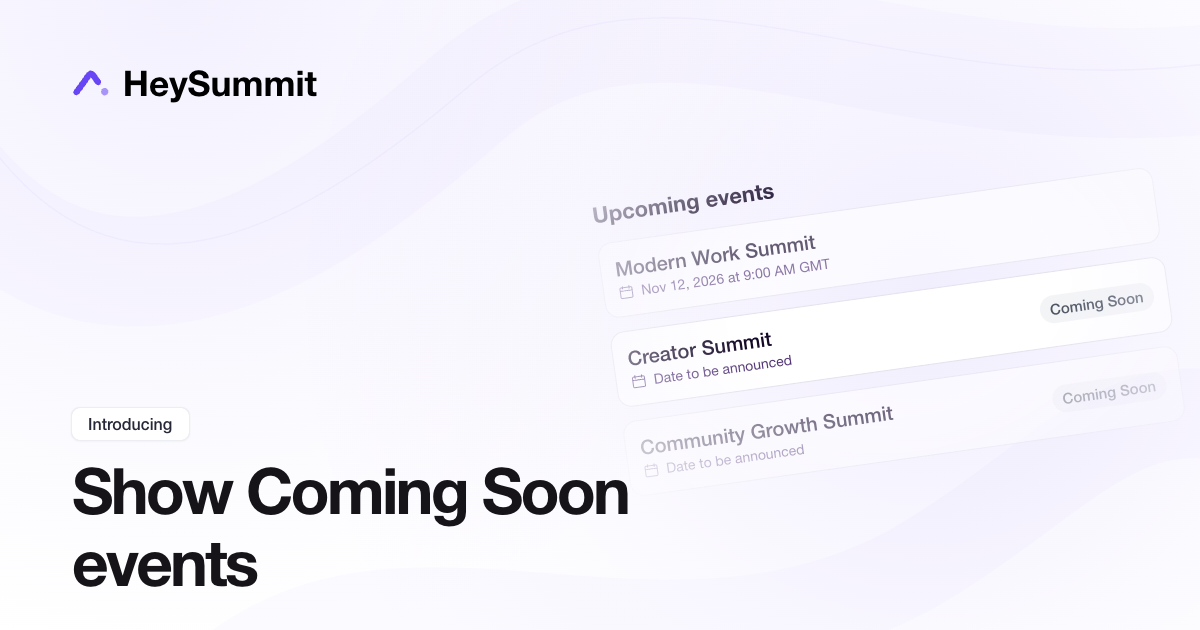
You can now show Coming Soon events on your workspace public page, so visitors can discover your next event before the full event website is published.
Open Public Page Settings for your workspace and enable Include Coming Soon events?. The option is off by default. Eligible unpublished events appear under Upcoming events with a Coming Soon badge. Clicking an event opens its Coming Soon page.
Only non-private, non-archived events with Show on Workspace Public Page enabled are included. Workspace subscribers still receive their new-event notification when the full event is published.
TikTok Ads conversion tracking
Connect TikTok Ads to your HeySummit event from Event Settings → Integrations → Paid Ad Conversion Pixels.
After an attendee accepts cookie consent, HeySummit can send TikTok standard events for page views, leads, completed registrations, paid purchases and replay views. You can adjust the event names to match your TikTok Ads setup while keeping the existing conversion-pixel controls in one place.
Only conversion activity is sent. HeySummit does not send attendee contact details with these events.
Personalise your workspace public page and manage subscribers
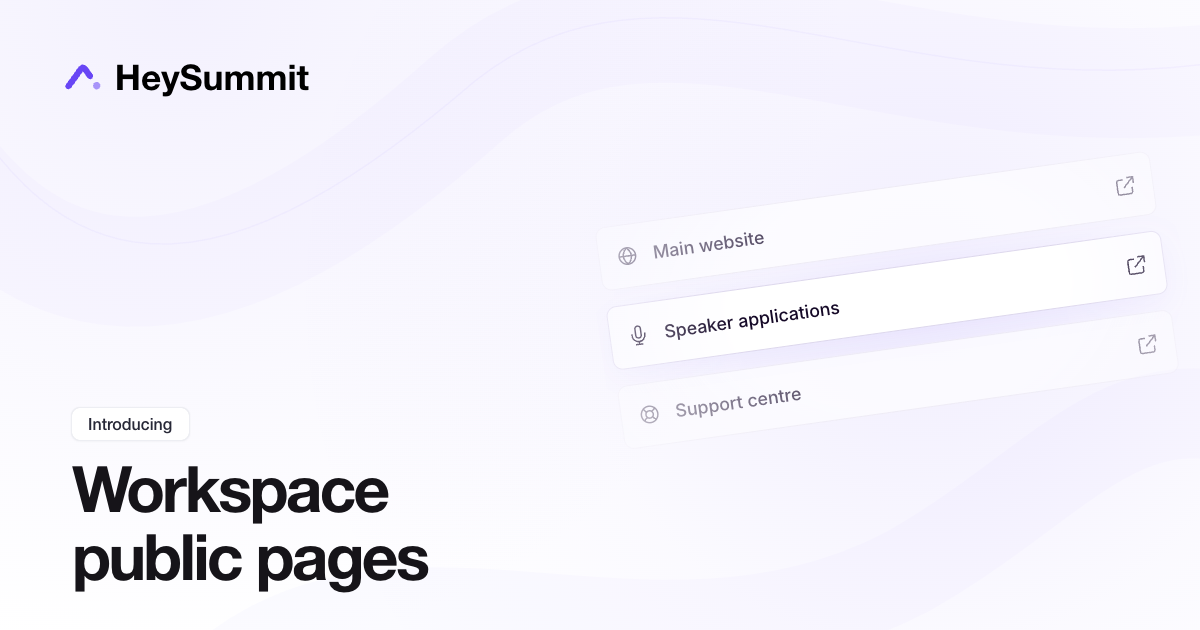
Your workspace public page can now point visitors to the places that matter between events, with a separate public brand name and access to the people who subscribed for updates.
In Public Page Settings, use Presented by (public brand name) to choose the name visitors see. Leave it blank to use the workspace name, or set a public brand name while keeping a different workspace name inside your account.
Open Public Links in the workspace dashboard to add links to your website, speaker applications, community or support site. Give each link a title and optional icon, drag links into order, and make them active or inactive. Active links appear on your public page and open in a new tab.
The new Subscribers page lists people who opted in to new event updates from that workspace. Workspace owners can correct an email address, unsubscribe someone or delete a record. Existing consent and unsubscribe history are preserved when editing an address.
Clearer event emails
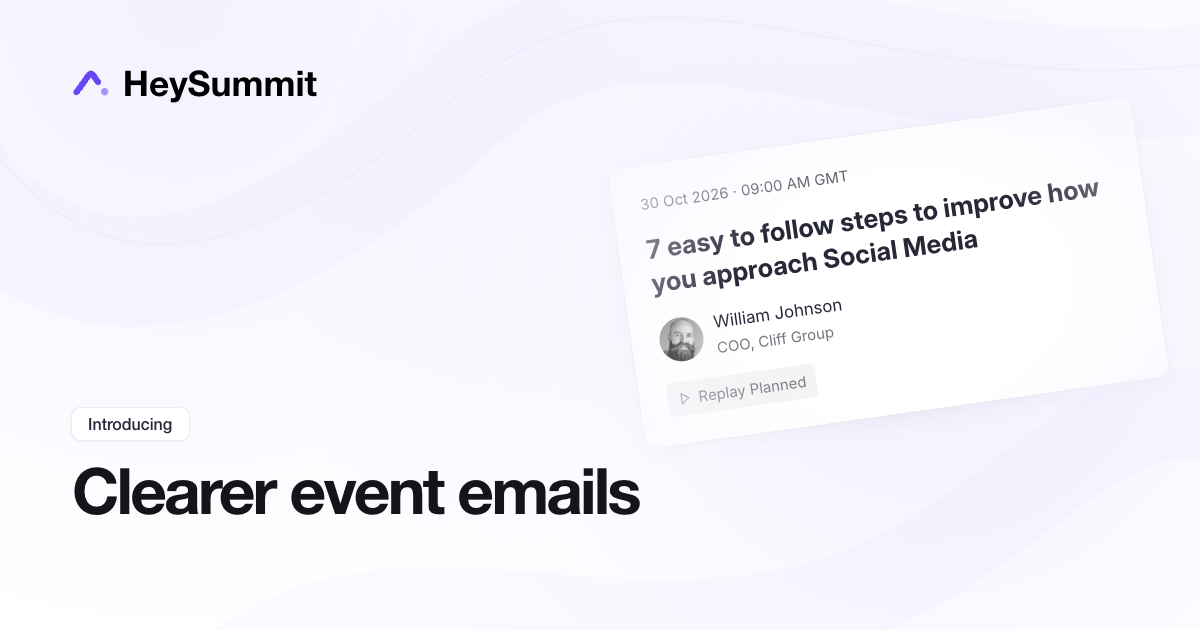
Event emails have a refreshed layout that makes session details, ticket receipts and application information easier to scan. Session cards bring the date, time, session title, presenter and viewing action together.
Inbox previews now draw from the message itself. Your saved custom text and styling stay in place.
To check an email before sending, open Email & SMS → Emails, then choose Actions → Preview email beside the message.
Award certificate credits by session duration
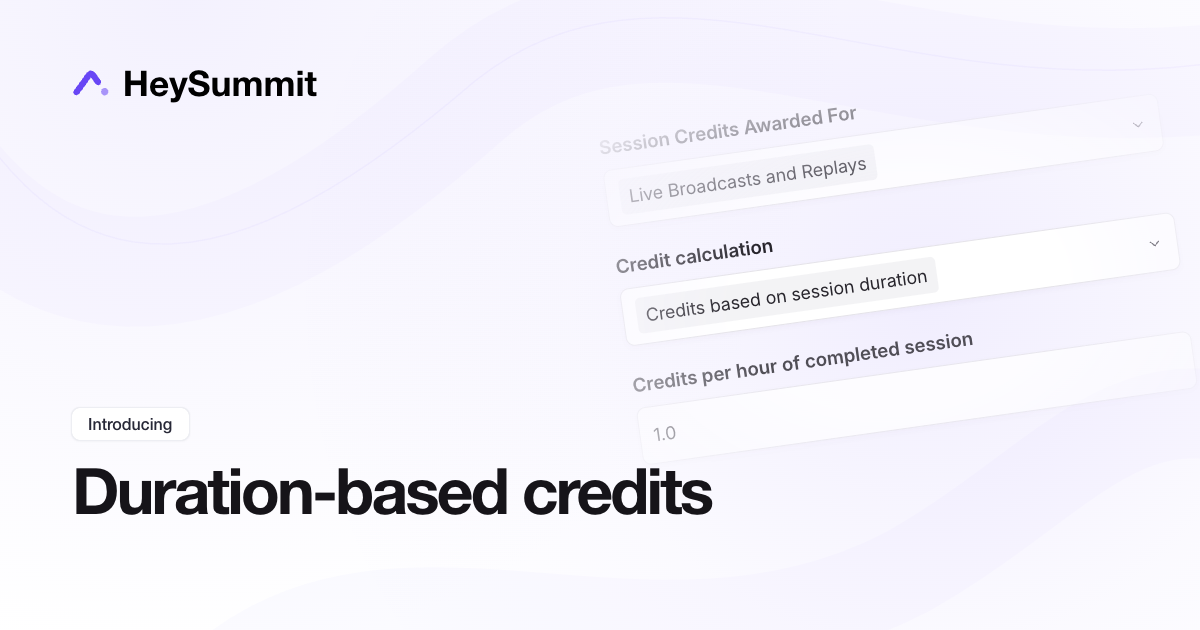
Certificate credits can now reflect the length of each completed session. Set an hourly rate and HeySummit calculates credits from the scheduled session duration. At 1 credit per hour, a completed 30-minute session earns 0.5 credits and a three-hour workshop earns 3.
Open Event Settings → Event Experience → Attendance Tracking. Under Attendance Credits, choose Credits based on session duration in Credit calculation, then set Credits per hour of completed session. Fixed credits per completed session remain the default.
Your completion threshold and live/replay eligibility rules still apply. Credits are based on scheduled length, rather than minutes watched, and a session is awarded only once across live and replay attendance. Base event credits remain additional. Changing the calculation mode or rates recalculates existing certificate totals without changing attendance records.
See the certificate credit setup guide.
Share guides, files and links with your event partners
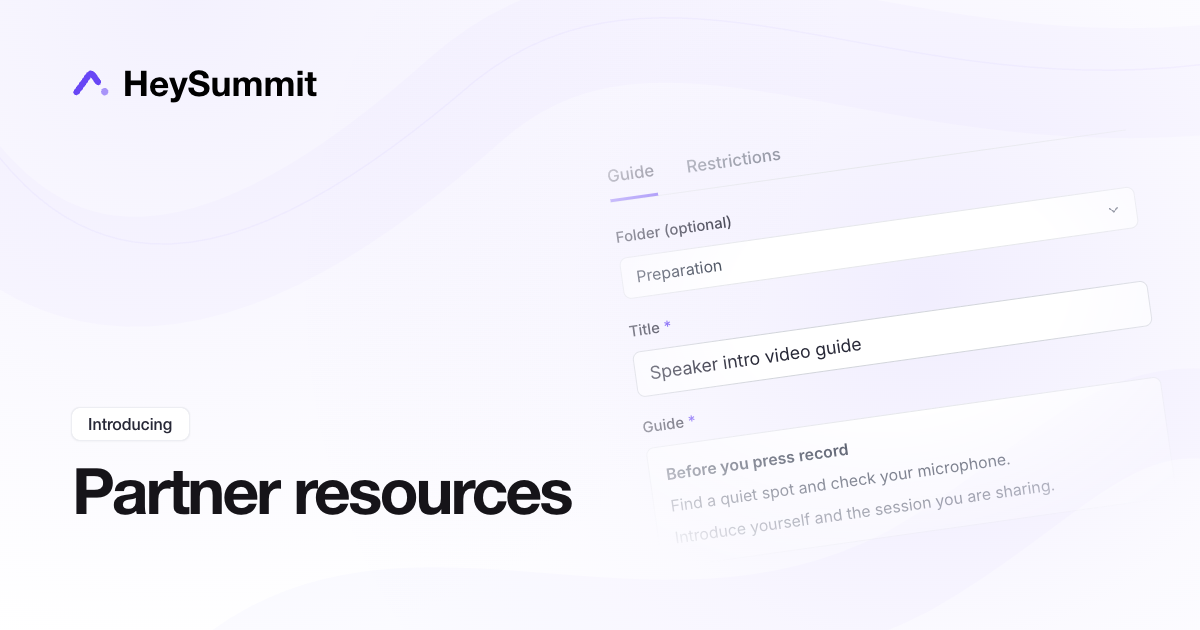
Give your presenters, sponsors and affiliates one place to find the materials they need. Their Resources area now has separate Media, Links and Guides tabs, including written preparation guides they can read directly in HeySummit.
In your event dashboard, open Marketing → Partner Resources to upload files, add useful links or write a guide. Use folders to group related items, then choose which audiences or specific people can access each resource. It is a useful home for intro video instructions, worksheets, checklists and practical tips.
Partners can browse guides by title, folder and a short preview, then open the full instructions. Swipe Copy has the same clearer cards, with Copy text and an image download action when an image is included.
Event, session and presenter graphics remain available in their own tabs under Partner Resources.
Join external sessions directly from your calendar
Attendees can now join Zoom, Teams and other externally hosted sessions directly from their session calendar entries. New session invitations, calendar downloads and Google Calendar entries include the meeting link when direct joining is enabled.
Under Live & Replay Experience, use Direct join links in reminders and session calendars? to choose whether attendees go straight to the meeting or visit the HeySummit session page first. Reminders and session calendars now follow the same setting.
Whole-event calendar entries are unchanged. If a meeting link is not available when a calendar entry is created, it links to the HeySummit session page instead.
Add an author bio and links to your event blog posts
We're rolling out author profiles for event blog posts. This will be available within the next 30 to 60 minutes.
Open Website → Blog Posts → Your Author Profile to add a public author name, a short bio, your website, and social or other public links. Your photo comes from My profile.
Your author details appear beneath blog posts where you're selected as the author, across your events. Leave the bio and links blank to keep just your existing byline.
Track event conversions from ChatGPT Ads
You can now track conversions from your ChatGPT Ads campaigns in HeySummit.
In your event dashboard, go to Event Settings → Integrations → Paid Ad Conversion Pixels, click Add, choose ChatGPT Ads, and enter your Pixel ID from OpenAI Ads Manager → Conversions.
HeySummit automatically sends standard events for leads, completed registrations and paid purchases, including purchase amount and currency. Tracking runs after visitors accept cookies.
You'll need access to OpenAI Ads Manager and matching conversions configured there to measure your campaigns.
Review submissions and sponsor applications across your events
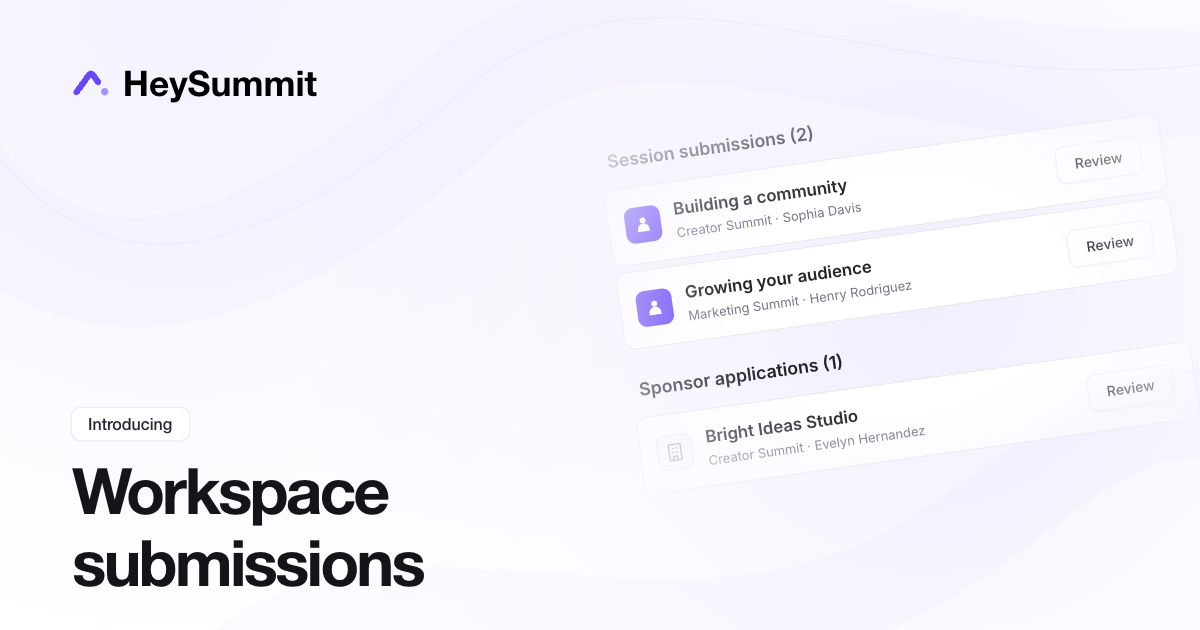
You can now see session submissions and sponsor applications awaiting review across all active events in a workspace.
Open your workspace dashboard and scroll to Session submissions and Sponsor applications at the bottom. Each section shows a total and the event behind each submission or application. Select Review to open that event's review list.
If you manage several events, this gives you one place to check what's waiting. You can still review items from each event's At a glance dashboard or its content and sponsor management areas.