
Import and export event translations

Benjamin DellFounder
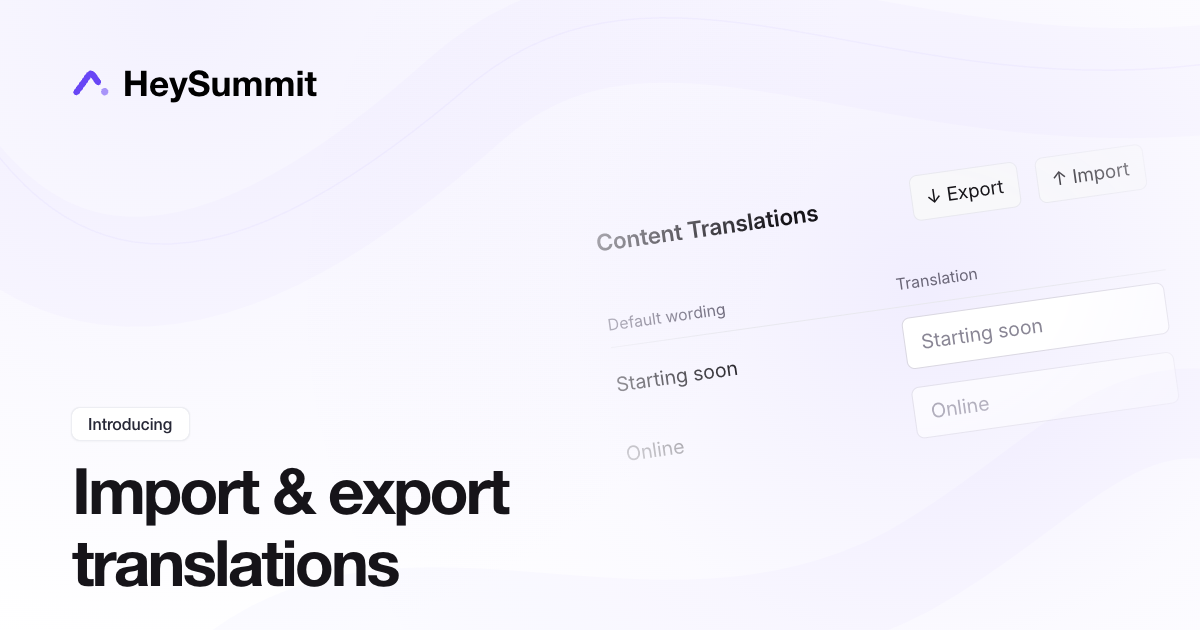
You can now export custom event wording to a CSV, edit it in a spreadsheet, and import it into another event. Reuse terminology from a past event or prepare translations in bulk.
Open Event Settings > General > Content Translations and choose Export. Keep the Translation key column unchanged, then fill in the Translation column with your wording. Choose Import in the destination event to upload the file and map its columns.
Blank translations are skipped. Existing custom wording is kept unless you turn on Replace existing custom wording?. Keep placeholders such as {} unchanged so names and other details still appear correctly.
Imports update event-wide wording only. Page-specific wording and your event language setting stay as they are.
Built from your feedback